UR Courses XML Quiz Converter
XML Quiz Converter
This tool converts any supported regular Moodle question type into an XML format, allowing you to easily import them into a UR Courses question bank.
To access the XML Quiz Converter:
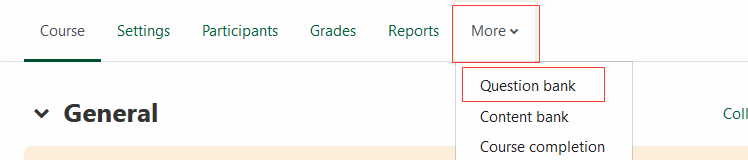
- In your course, click the More button, then select Question Bank. (Alternatively, you can open an existing quiz and click Question Bank).
Note: Depending on your course layout, this menu may look like one of the two options below.

- On the left-hand side of the page, click the Questions dropdown and change the selection to Convert questions.


Unlike other import file formats, the XML Quiz Converter supports bulk uploading of all supported question types, preserves HTML formatting, and provides interface-level XML troubleshooting for errors.
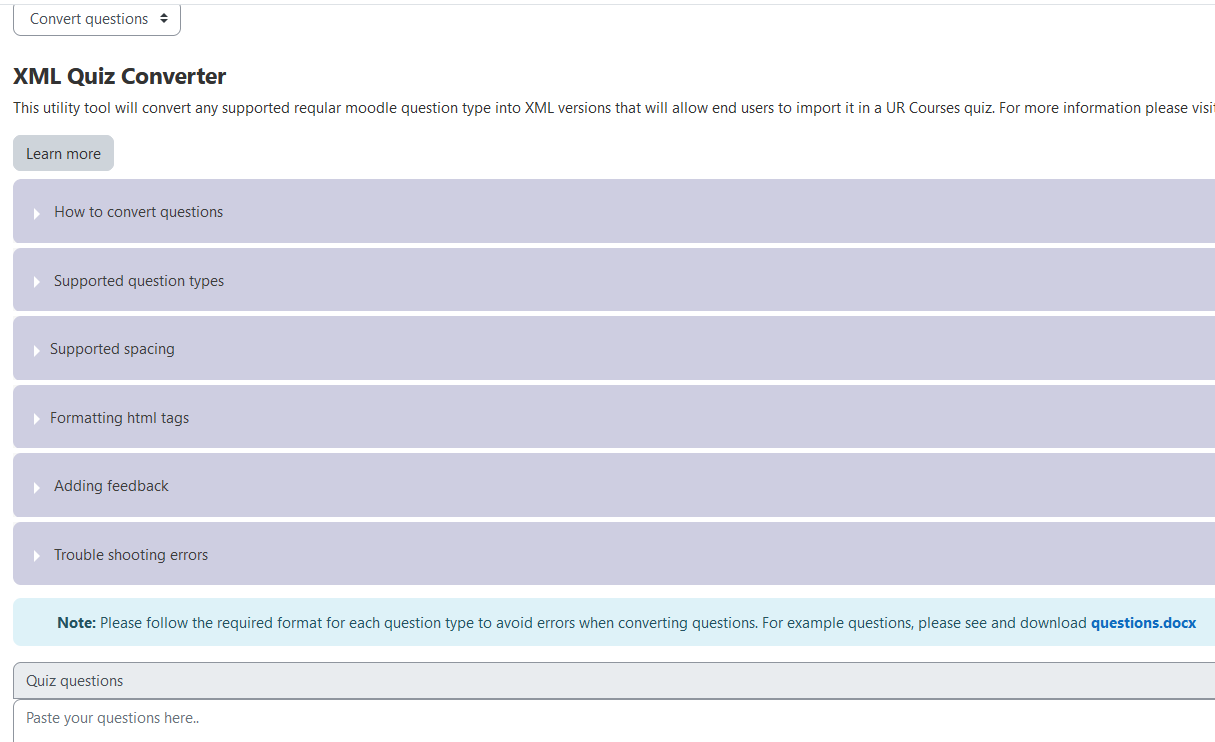
How to convert questions
Tip: Practice makes perfect! Before formatting your actual course materials, we highly recommend clicking Load Sample Questions and running a test conversion a few times. Trying it out yourself is the best way to get a feel for how the tool handles formatting and catches errors.
Formatting and Converting Your Questions
1. Entering Your Questions You have three options for getting your questions into the converter:
- Load Sample Questions: Click the green button in the top right corner. The text area will automatically populate with correctly formatted examples. You can use these examples as a structural guide—simply replace the sample text and answers with your own course content while maintaining the layout.
- Download the Template: Click the sample_questions.txt template link in the blue information box. This will download a plain text file containing the full structure of all supported question types, which is perfect for practicing or drafting your questions offline before pasting them in.
- Type or Copy and Paste: Enter your questions directly into the large Quiz questions text area following the supported formatting rules. (A green success banner will appear indicating that "All questions are correctly formatted" when your syntax is correct).

2. Converting and Importing Once your questions are entered and you are ready to proceed, click the Convert questions button at the bottom of the page. This will process your text and open the Confirm Import window.

From this screen, you can finalize how your questions are saved to UR Courses:
- Target Category: Use the dropdown menu to select exactly which folder in your Question Bank these questions should be organized into.
- Review XML: You can scroll through the generated XML code in the dark preview box to ensure everything compiled correctly.
- Download XML: Click this button if you want to save the raw
.xmlfile to your computer (useful for backups or manually importing into a different course later). - Confirm & Import: Click this green button to instantly push the converted questions directly into your selected Question Bank category!
Converting UR Courses Questions into simple text (Revert XML to text)
Note: The tool can now convert XML questions back to a question text that can be readily copied and pasted back into a Word document.
How to convert your questions:
- Export your existing quiz questions from UR Courses in Moodle XML format.
- Open the downloaded
.xmlfile and copy the code. - Paste the XML code directly into the Quiz questions text area in the converter.
- Click the Revert XML to text button.
- The system will instantly strip away the complex XML coding, leaving you with a clean, formatted plain text version of your questions that you can copy and save as your new "true copy."
Supported type questions
Supported Question Types & Formatting Rules
The XML Quiz Converter automatically detects the type of question you are building based on how you format the text and the answer key.
- Multiple Choice: Use standard lettering for choices (A., B., etc.). Prefix the correct answer with
Answer:.- Single correct answer:
Answer: A - Multiple correct answers (Partial Credit):
Answer: A, C(The system will automatically divide the score equally between the correct options).
- Single correct answer:
- All-or-Nothing Multiple Choice: To force an all-or-nothing grading scheme, either include the exact phrase
Select all that applyin your question text, OR use the prefixAll:instead ofAnswer:at the bottom. - True or False: Do not provide A/B choices. Simply type the question, and provide
Answer: TrueorAnswer: False. - Short Answer: Provide the exact text you want to accept. Example:
Answer: George Washington. - Numerical: Provide a number as the answer. Decimals and negative numbers are supported. Example:
Answer: -3.14. (Note: Tolerance is strictly set to 0). - Matching: Do not use
Answer:. Instead, map your pairs using a text arrow (->).- Example:
Cat -> Feline
- Example:
- Select Missing Words (Gap Select): Use bracketed numbers in your question text (e.g.,
The [[1]] brown fox jumps over the lazy [[2]].). Below the question, map the options using those numbers:1: quick2: dog
- Essay: If the system does not detect any multiple-choice letters, matching arrows, or specific answer prefixes, it will automatically default to creating an open-text Essay question.
- Description / Label: If you just want to insert reading material or instructions without a grade, include
(Description),(Label), or(Info)anywhere in the question text. The system will strip that tag out and convert the text into a static label.
Troubleshooting errors
Real-Time Error Checking & Validation
To prevent broken or incorrectly formatted quizzes from being imported into Moodle, the XML Converter features a built-in, real-time validation engine. As you type or paste your text into the editor, the system constantly scans your formatting to ensure it meets the requirements.

How to Troubleshoot Formatting Errors: If the system detects a formatting mistake, it will prevent you from converting the file and display a yellow warning panel above your text.
- Specific Feedback: The panel will tell you exactly which question is broken and what is wrong (e.g., Missing "Answer:" line, Question text is missing, or Question number is missing).
- Interactive Highlighting: You do not need to hunt for the mistake yourself! Click the Highlight link next to any error message. The editor will automatically scroll down to the exact problem area, briefly highlight the line in yellow, and place your text cursor there so you can fix it immediately.
- Line Number Indicators: Look at the line numbers on the left side of the text box. The system places red dots (●) directly next to any line of text that is causing an error.
 Once you fix the highlighted errors, the yellow warning panel will automatically disappear and be replaced by a green success message, letting you know your quiz is ready to convert!